Organising Events
This guide covers how to set up and run events as an organiser. Use the Setup tab on your event page to configure everything below.
Features
- Shareable/Public Event Page & Event Packs
- Configurable Scoring with major/minor scoring
- In-Built Hobby Voting & Awards
- Integrated List Uploading & Reviewing
Event Setup
As an event owner or tournament organiser, open your event and go to the Setup tab to configure the following.
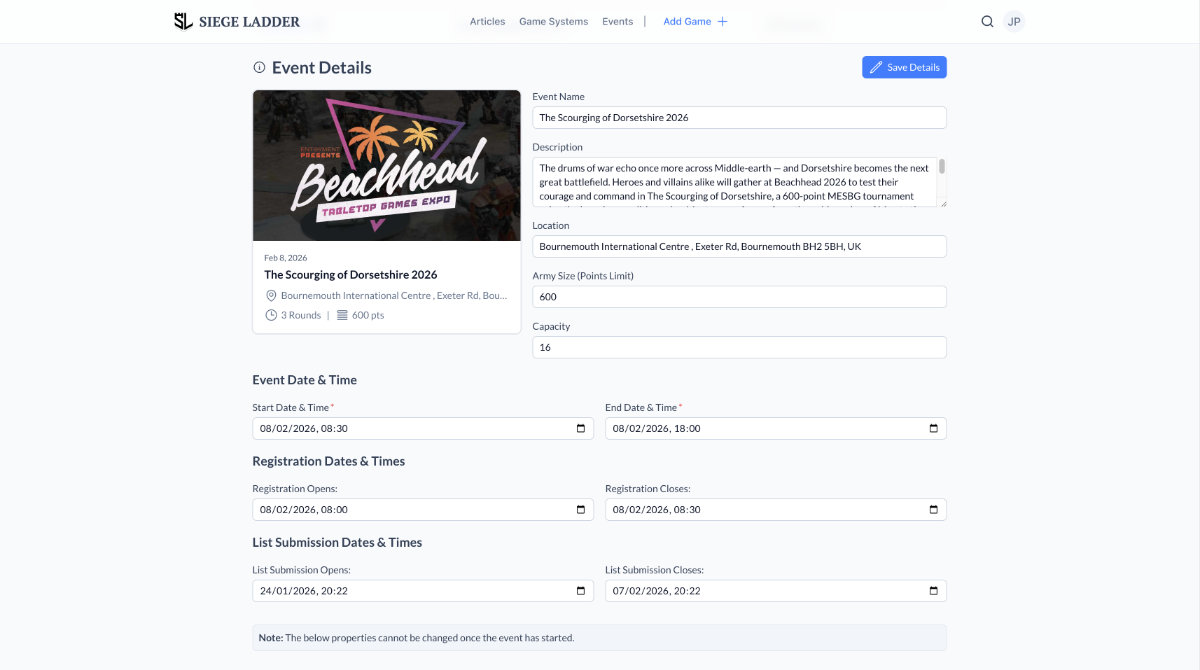 Screenshot of "Event Setup" page showing the different sections and options
Tournament Organizers
- Owner — The user who created the event (shown with an "Owner" badge). There is one owner per event.
- Organizers — Additional tournament organisers can be added via Add Tournament Organizer. Choose a user from the site; they will then have organiser access to the event (registrations, setup, admin).
Event Details
Use Save Details to persist changes. The form includes:
| Field | Description |
|---|---|
| Event tile | Upload an image used as the event tile/card. |
| Event Name | Public name of the event. |
| Description | Short description of the event. |
| Location | Venue or "TBD" if not yet set. |
| Army Size (Points Limit) | Points limit for army lists (e.g. 800). Leave empty if you use varied list sizes per round. |
| Capacity | Maximum number of players. |
Event Image
You can upload an image for your event here, which will then be used on the event tile across the site:
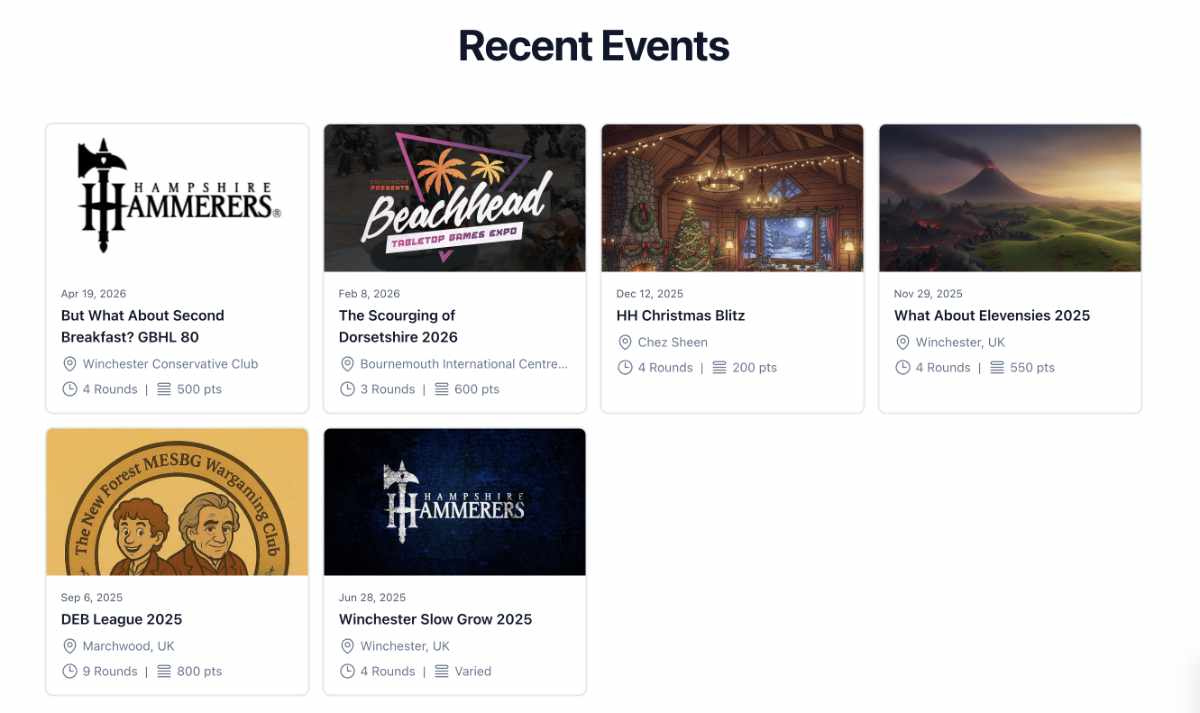 Screenshot of "Recent Events" showing custom event images
Event Date & Time
- Start Date & Time — When the event begins (required).
- End Date & Time — When the event ends (required).
Registration Dates & Times
- Registration Opens — When players can register.
- Registration Closes — When registration ends. If you don’t set this, it can default to one week before the event start when you set the start date.
Registration is only open when the current time is between open and close (unless overridden in Admin).
List Submission Dates & Times
- List Submission Opens — When players can submit army lists.
- List Submission Closes — When list submission ends.
List submission is only open during this window (unless overridden in Admin).
Note: Once the event has started or is completed, the options below (ranked, army lists, scoring, standings order) can no longer be changed.
Ranked Tournaments
- Ranked Event? — Toggle between Ranked and Casual. When Ranked, games in this event count towards each player’s Elo rating. When Casual, they do not.
Army Lists
- Max. Number of Lists per Player — How many army lists each player may submit (e.g. 1 for a single-list event, or more for events where lists change per round).
Scoring
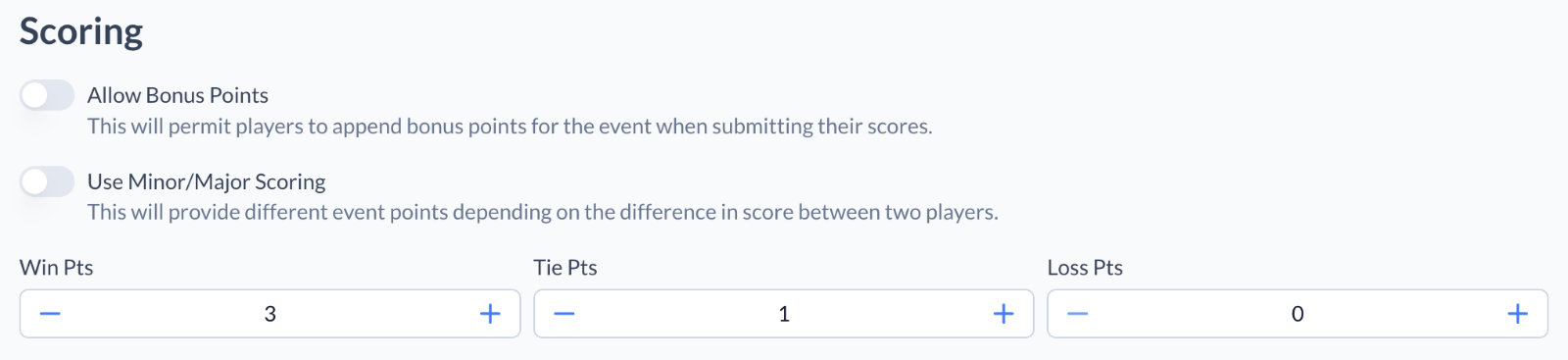 Screenshot of "Scoring Configuration" options for an events
- Allow Bonus Points — If enabled, players can add bonus points when submitting results (e.g. painting or sportsmanship). These can be included in standings and in the Standings sorting order.
- Use Minor/Major Scoring — If enabled, result points depend on the score difference (e.g. a big win gives more points than a close win).
- Min/Max Threshold — The minimum score difference for a result to count as major win/loss (e.g. 10 means a 12–2 result is major).
- When minor/major is on, you set: Major Win, Minor Win, Tie, Minor Loss, Major Loss (in points). Otherwise you set a single Win, Tie, and Loss value.
Standings Sorting Order
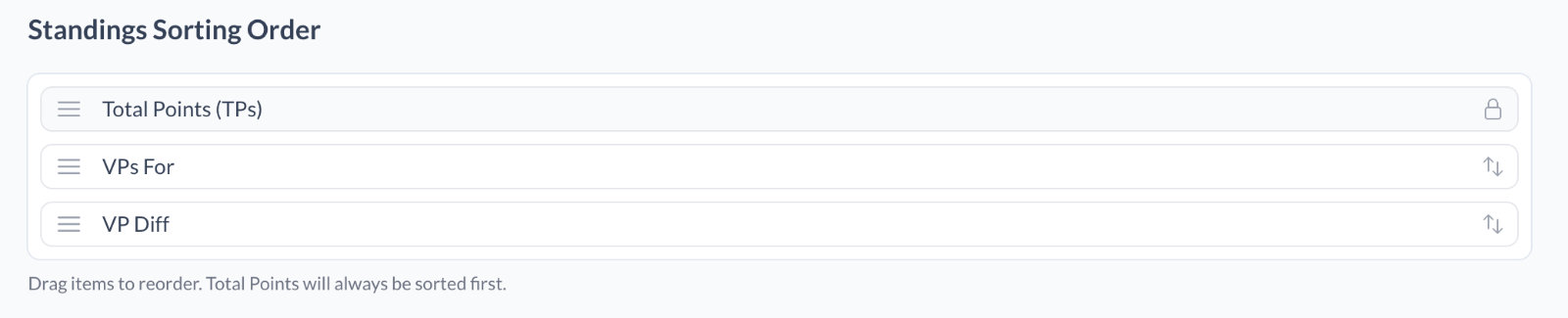 Screenshot of "Standings Sorting Order" options for an event
Configure the order in which standings are sorted (e.g. total points first, then VPs for, then VP diff, then bonus points if enabled). This defines how ties are broken and how the final ranking is determined.
After saving your event details, use the Admin tab to control draft visibility, registration/list overrides, schedule (rounds and games), and awards (podium and other awards).
Event Controls
This section gives you control over the event's visibility, registration and list submission windows, and the schedule (rounds and games). It is where you'll spend your time as a TO after the initial event setup has been completed.
Options
- Draft Event — Toggle between Draft and Public. When Draft, the event does not display on the Events page on Siege Ladder, though the URL can still be directly shared to show others.
- Registrations Open — Define whether or not players can register for the event. This is an override to the registration dates and times set in the Event Details section.
- List Submissions Open — Define whether or not players can submit army lists for the event. This is an override to the list submission dates and times set in the Event Details section.
- Lists Visible — Control whether lists are visible to viewers other than TOs and the player themselves.
Schedule
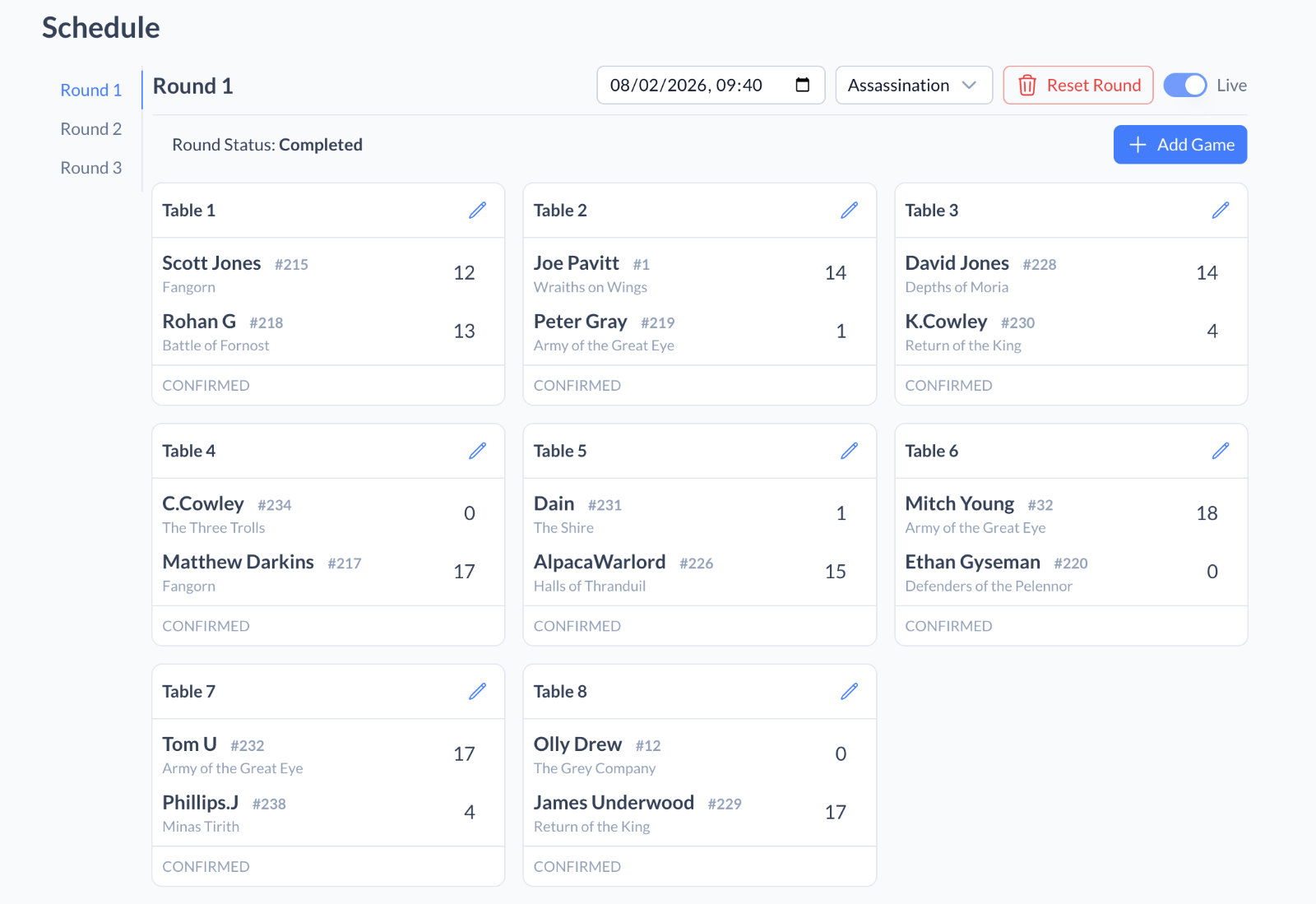 Screenshot of "Schedule" section of event controls
On the day of your event, this will be where you spend most of your time. Here you can:
- Define Scenarios for each round
- Define the Date & Time of each round
- Automatically generate fixtures for each round
- Manually override fixtures for each round, if required
- Submit and modify game results for each round
- Control whether or not the round is Live, making it visible to players and public.
Awards
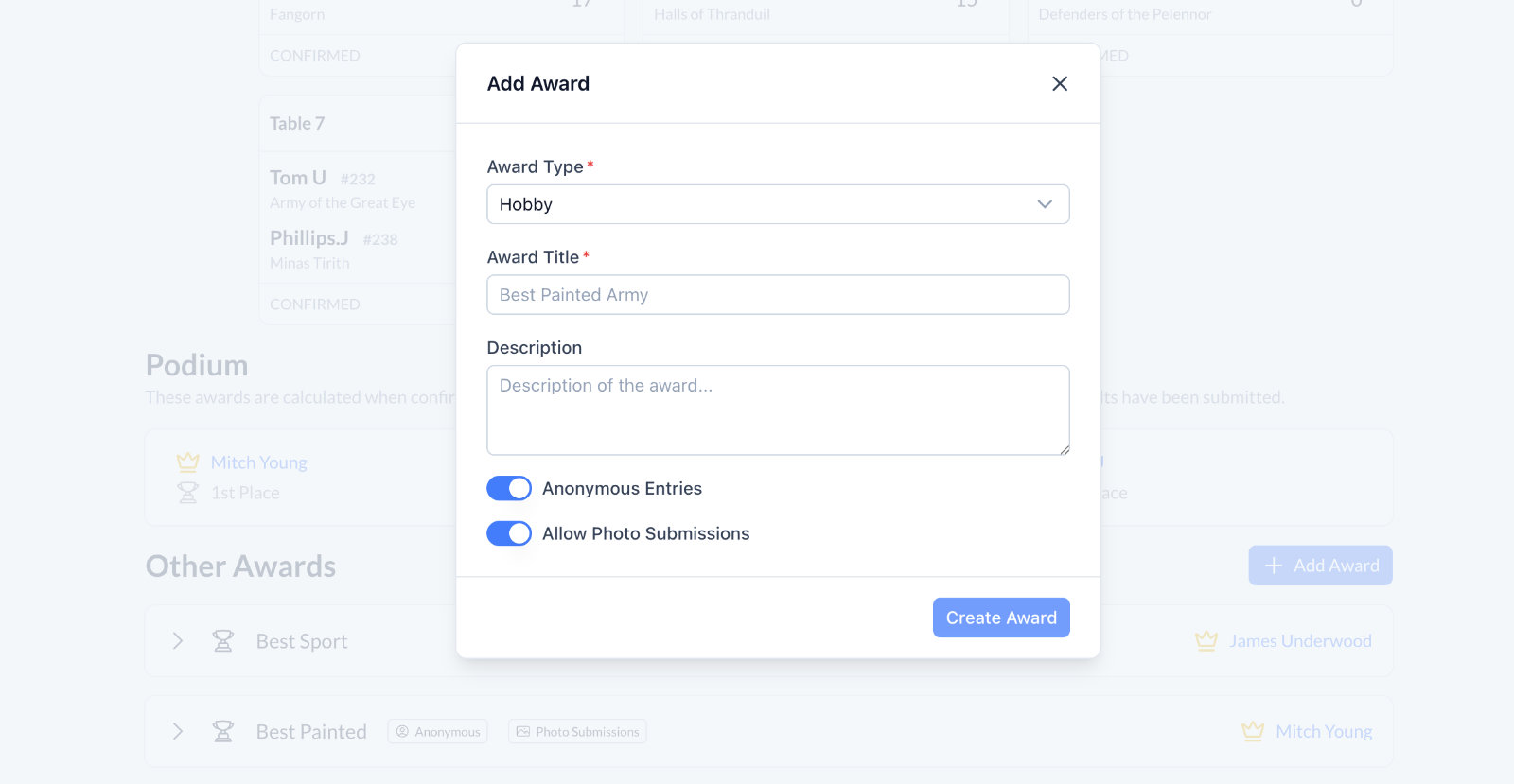 Screenshot of "Add Award" dialog box
You can configure the following awards for your event:
- Podium — Often used to define the awards for the top 3 players in the event.
- Hobby — Often used to define the awards for the best hobby performance in the event.
- Most Sporting — Often used to define the awards for the best sporting performance in the event.
- Other — Often used to define the awards for other performance in the event.
Award Voting
Both Hobby and Most Sporting awards will automatically setup with a full voting system enabled. For Hobby awards, players can submit entries and vote for their favorite entry. For Most Sporting awards, players can simply vote for the registered player they think performed the best in the event.
The tournamant organiser can then choose to close the voting, and assign the award to the players. Whilst Siege Ladder will automatically suggest the winner, based on the voting, this is not fixed. Organisers can override the voting system and assign the award to any player.